
A Legal Workspace component
Legal Studio
Legal documents, turning dictation into structured text, and legal AI in a connected workspace.
Write and edit legal documents with AI assistance. Turn dictation, a meeting or a recording into text for a document. Review suggestions and changes, then digitally sign the document.
Use Legal Studio within Legal Workspace, independently with OLC Engine, or as part of your own system.
01 Preparation · formatting · references
Prepare and format a legal document
Prepare and exchange documents
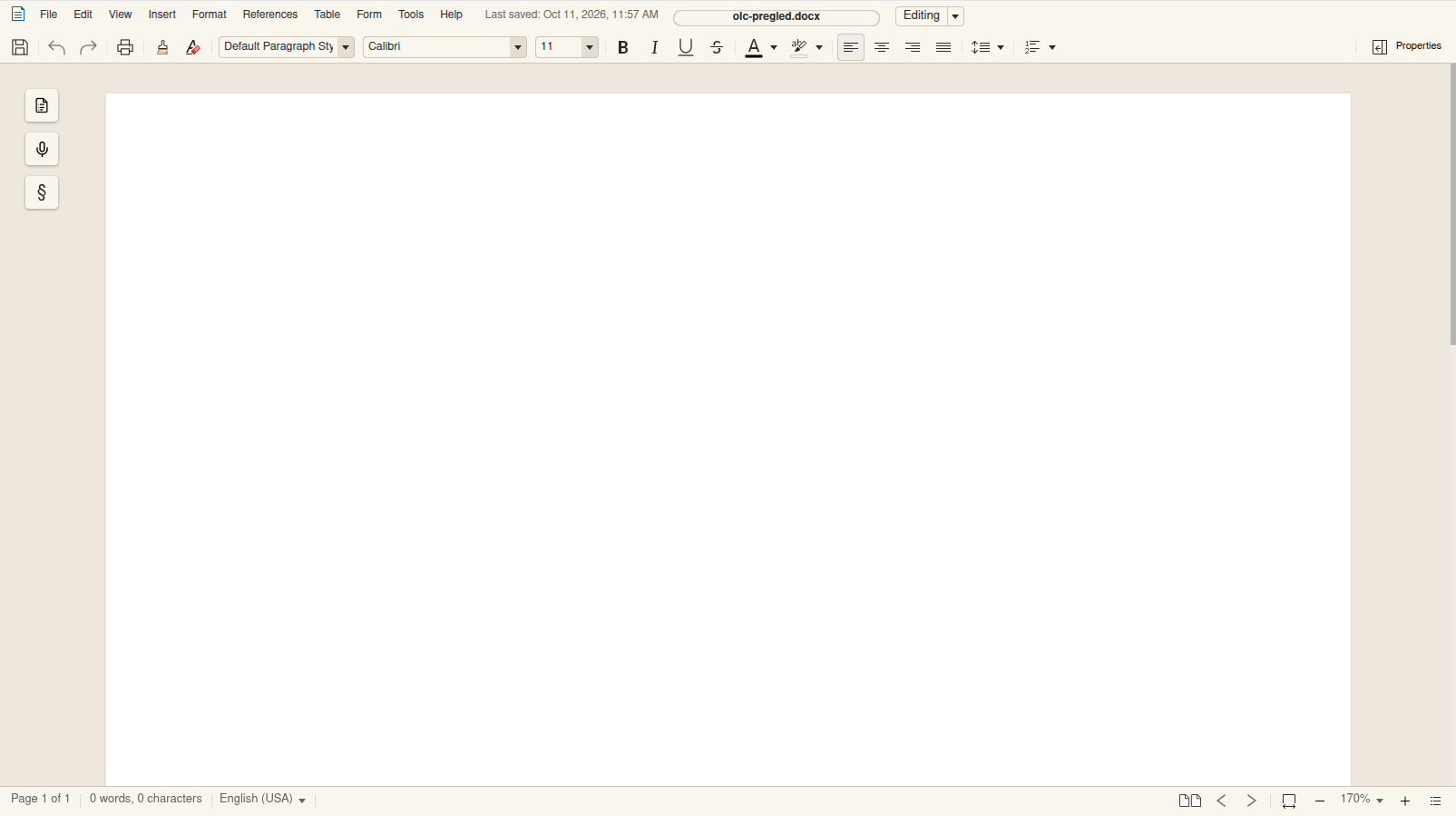
Start a new document or upload a DOCX, ODT or PDF. Prepare legal submissions, contracts, correspondence, legal opinions and minutes in the page view. Save, reopen, print or export your work to PDF.
Select, copy, cut and paste text; undo or redo changes. Use search and replace to keep terminology consistent.
Format the document
Apply fonts, character formatting, and heading and paragraph styles. Set alignment, indents, spacing and tabs; add bulleted lists or multilevel numbering.
Set page size, orientation, margins, breaks and sections. Add headers, footers, page numbers and watermarks; adjust zoom and choose a compact or tabbed toolbar.
Organise sources and references
Add tables, images, shapes, links and bookmarks. Organise sources and references with footnotes and endnotes, a table of contents, cross-references, captions, document fields and bibliographic entries.
02 Drafting · sources · analysis
Legal AI assistance alongside the document
Use legal AI assistance through OLC Engine for a selected passage or the whole document. It helps with wording, structure and alternative drafts, finding legislation and case law, and analysing facts, legal questions and arguments.
Compare possible approaches and legal strategies, and identify gaps, contradictions and questions that need further checking.
- 01
Legal Workspace
When used within Legal Workspace, the document connects with Matters and Conversations.
- 02
OLC Engine
Supports source research, analysis and alternative drafts.
- 03
Your review
Review a suggestion before incorporating it into the document.
03 Four ways to create a transcript
Capture speech or open a recording
Dictation or a recorded conversation can become material for a note, minutes or a legal submission. Legal Studio offers four ways to capture speech:
01
Dictation
Speak into the microphone and follow the recognised text as it appears.
02
Meeting recording
Capture a conversation through the microphone and save the audio alongside its live transcript.
03
Uploaded recording
Open a WAV or MP3 file, play it and explicitly start transcription. Follow the processing status and cancel if needed; the original file is retained.
04
Browser-tab audio
Select a tab using that browser’s picker and capture its audio together with audio from your microphone, for example during an online conversation.
Pause, resume and finish dictation or recording. During dictation, you can hide and reopen the panel without losing the ongoing session. Reopen saved recordings and transcripts for further work. A standalone audio note does not require you to create a meeting.
04 Original · edit · note · minutes · document
Turn a transcript into text for a document
Play back the recording, compare the transcript with the audio and prepare text for your document. The original and edited versions remain separate, including after AI processing.
Retain the original
Open earlier transcripts from the list and edit them manually. The source recording and original text remain available for comparison. The player shows duration and position; pause playback or skip forwards and backwards.
Choose the form of the text
Continue in the document
Insert reviewed text into the open document, create a new document from it or download it as TXT. After successful insertion, return to the document.
05 Comments · changes · signature
Review changes and sign the document
06 Relationships · settings · usage
Connected environment
Within Legal Workspace, Studio connects document preparation with Matters and Conversations. You can also use it independently with OLC Engine or integrate it into your own system.
Settings
When Studio is used within Legal Workspace, provider, model and processing choices are managed there.
Usage
When Studio is used within Legal Workspace, generative-AI and speech-transcription usage is recorded by user, source and task and passed to Legal Workspace for billing. Provider costs and user tariffs remain separate.
Let’s discuss how to bring Legal Studio into your working environment.